



Quick summary:
Point Claude at two folders — your modified theme, and a clean copy of the same theme version — and it will generate an HTML report listing every customization, which files it lives in, and how hard it will be to migrate.
Most Shopify stores have theme modifications that nobody remembers. A developer customized the theme three or four years ago. Someone pasted tracking code into theme.liquid. Someone else dropped a bit of CSS into a Custom Liquid block and forgot about it.
Then you decide to update your theme, and you have no idea what actually needs to be carried across.
I’ve done this job by hand plenty of times, and I’ve charged several hundred for it. It’s tedious, so I’m quite happy that AI has taken it off me.
What the report looks like
This is a real report from a client store running Impact v4.3.2, compared against the original Impact v4.3.2 files.
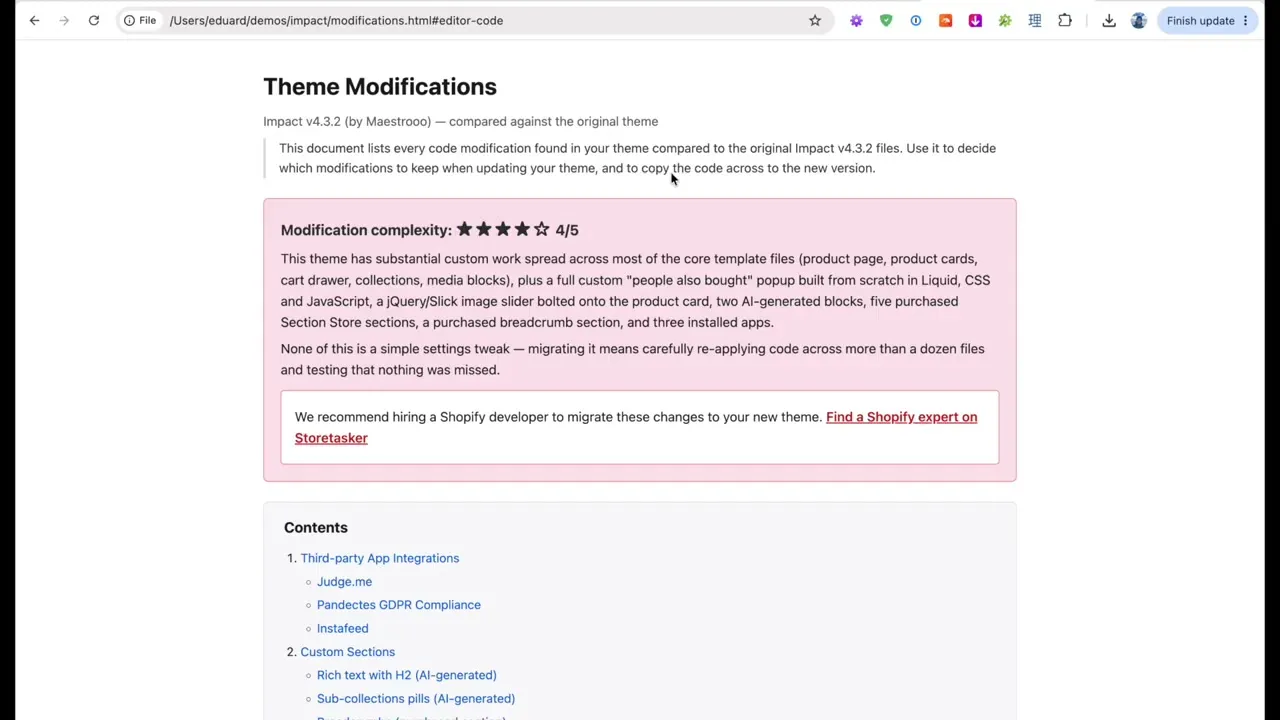
The modifications are grouped into categories:
- Third-party app integrations — code that apps have left behind in your theme files
- Custom sections — anything installed from Section Store, purchased from a developer, or generated by Shopify’s AI blocks
- Custom code via the theme editor — Custom Liquid fields and Custom CSS fields, which are easy to miss because they live in settings rather than files
- Code modifications — everything else, edited directly into the theme files
Each entry says what the modification does, which files it’s in, and shows you the actual code. So if you’re hiring a developer to do the update, they can see exactly which features need to be rebuilt in the new theme version.
I also told it to give a complexity score out of five. One or two stars means you can probably attempt the update yourself. Three or more turns red and recommends hiring a Shopify developer, because at that point you’re re-applying code across a dozen files and testing that nothing was missed.
What you need
There isn’t much actual work here. Most of it is collecting a few things.
Claude Pro
That’s the $20 a month plan. You don’t need Max, and you don’t need to think about the API or token costs.
Your current theme, downloaded
Download the live theme from your Shopify admin as a zip, with all the modifications still in it.
A clean copy of the same theme version
This is the part that takes some effort, because it has to be the exact same version number you’re currently running, not simply the same theme.
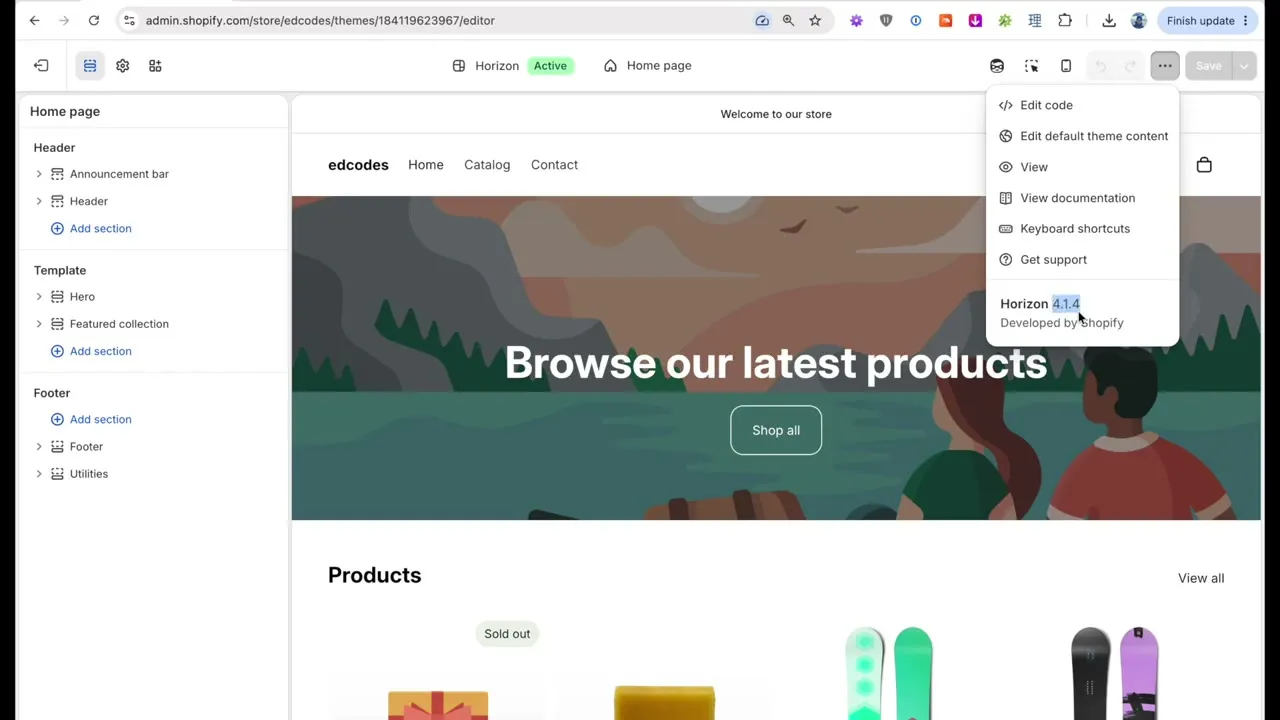
To check which version you’re on, open the theme customizer, click the three dots in the top right, and the version number is at the bottom of that menu.
If you’re on a paid theme, email the theme developer and ask for a clean copy of that version. They’ll send it over, though they might ask for a receipt as proof of purchase first.
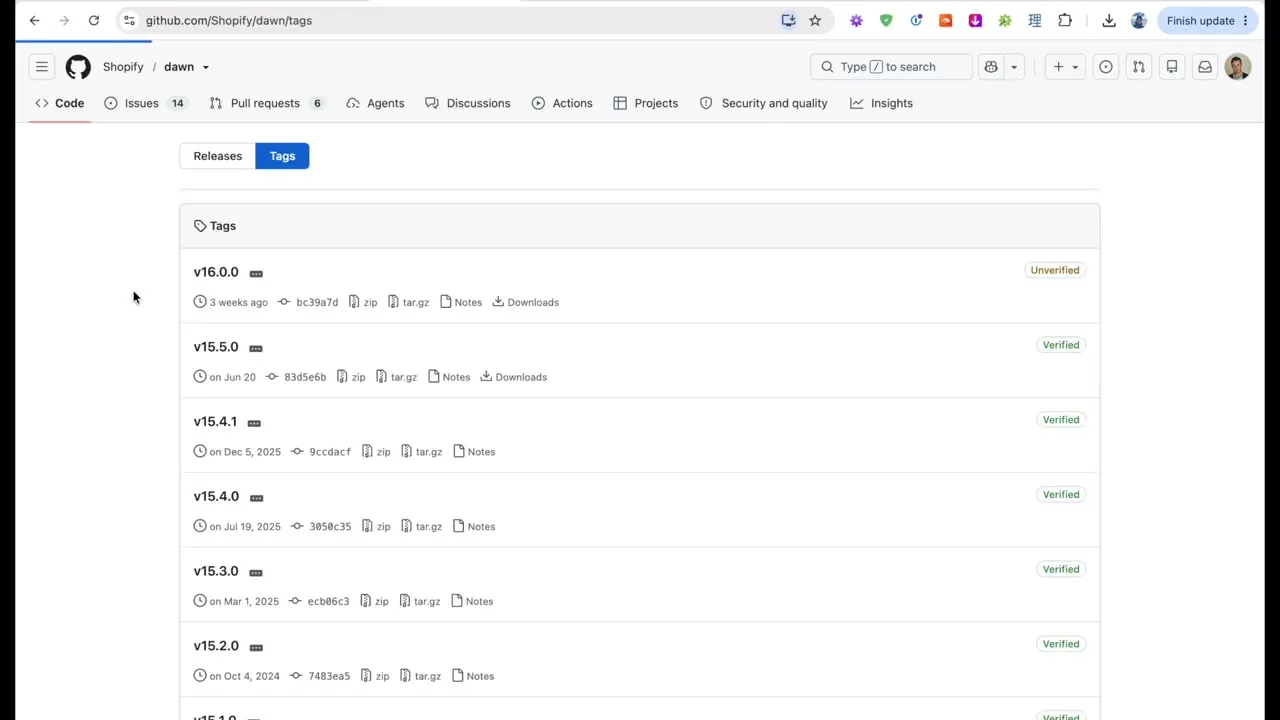
If you’re on Dawn, there’s nobody to email, but you don’t need anyone. Go to github.com/Shopify/dawn, click on Tags, and every version is listed there. Find yours and download the zip.
If you’re on Horizon, it’s more work. Horizon is public on GitHub - Shopify/horizon, but Shopify isn’t tagging releases and the branch names aren’t much help. What I do instead is ask Claude to find it for me — something like “find me a copy of Shopify Horizon theme version 3.5.1”, and paste the GitHub link in with it. It goes through the commit history and gets you a zip of that exact version, and it has worked perfectly for me every time.
Put both themes, unzipped, into one folder. I called mine dawn-find-mods, with dawn-modified and dawn-clean inside it.
Install Git first
Do this before anything else, because it makes the whole thing run smoother.
Comparing two folders is exactly what Git does, and if it’s installed, Claude will use it. Without Git it can still manage — with Python on Windows, or some built-in tools on Mac — but Git is the option you want.
To check whether you already have it, open Terminal on Mac or PowerShell on Windows and run:
git --versionIf that returns a version number, you’re set. If not, look up the install instructions for your operating system. It’s a quick install. Claude might also offer to install it for you when it gets to that point.
Install the skill
I’ve written this as a Claude Skill so you don’t have to work out the prompting yourself. You could prompt it manually, but it took me a fair bit of tweaking to get output I actually liked — the table of contents, the complexity rating, the HTML format.
Grab it from github.com/ed-codes/shopify-theme-modifications and download it as a zip.
Then in the Claude desktop app, go to Customize and find Skills. Click Add, choose upload, and drag the zip in.
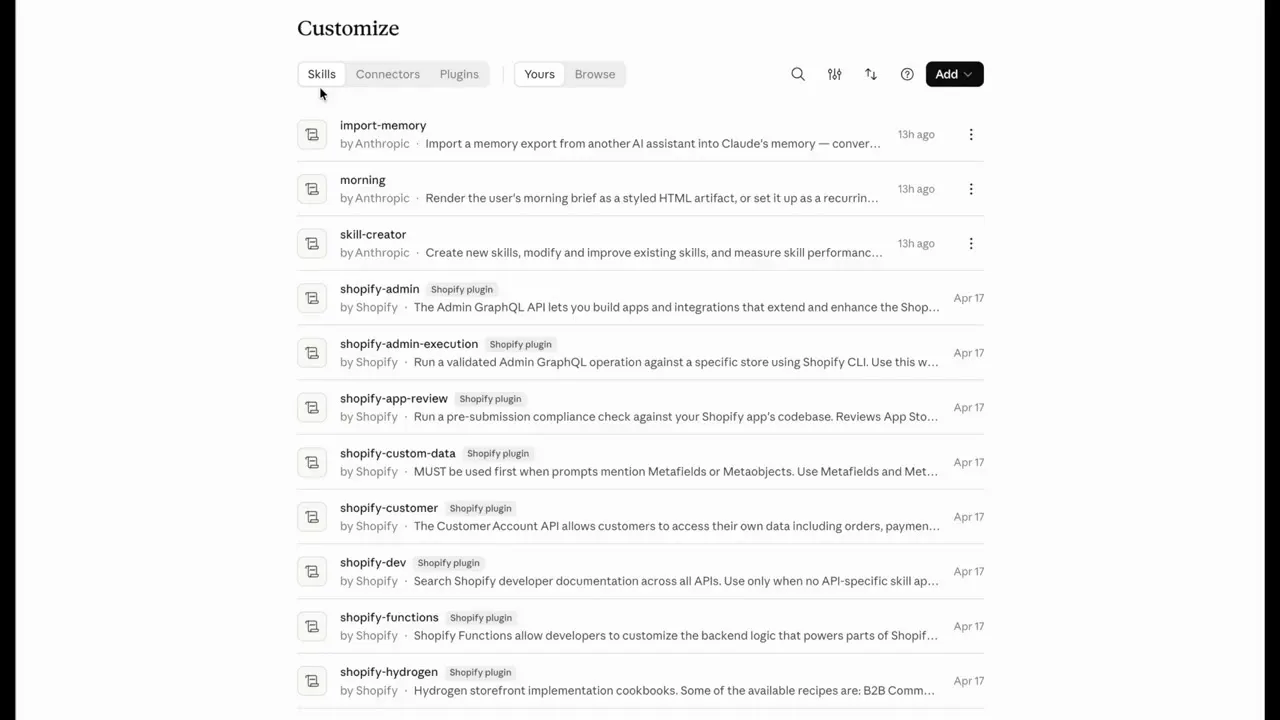
That’s the whole setup, although you might need to quit Claude and open it again before the skill shows up in chat.
Running it
Use the folder selector in the chat to point Claude at the folder holding both versions of your theme. Then type something like “find all code modifications”.
The skill triggers on a range of phrases, so you don’t need to name it. Anything along the lines of finding the differences or finding the modifications will pick it up, and you’ll see it load shopify-theme-modifications before it starts working.
It may ask for permission a number of times as it reads files and runs commands. Mine is set to auto, which is why it runs on its own in the video. For your first run I’d leave it on manual, just so you can see what it’s doing.
When it finishes it drops a modifications.html file into that same folder. It’ll open a preview in the built-in browser, but I prefer to double click the file and read it properly in Chrome.
What to do with it
Once you’ve got the report, you can go through and decide which modifications are still worth keeping. A lot of them won’t be — old app leftovers, sections that aren’t on any page any more, a fix for a problem that no longer exists.
Then hand the rest to whoever is doing your update, with the code included. That alone can save you from paying someone to spend a day working out what’s in there.
Results will vary depending on your machine, your theme, and how you’ve been using Claude. Writing about AI tools is unpredictable like that. Let me know how it goes for you.
If you have any questions, leave a comment on the video. See you in the next one!
Ed